QuickBooks Multi-User Mode Not Working? Fix Network Errors Fast
If your QuickBooks multi-user mode is not working, your work can come to a complete halt within minutes. For businesses that rely on shared accounting access every day, this becomes frustrating very quickly.
Most QuickBooks network issues are connected to server communication problems, incorrect hosting settings, firewall restrictions, or damaged network files. The good part is that many of these issues can be fixed without needing advanced technical knowledge.
At TaxBookHelpline, we provide reliable solutions to help users troubleshoot QuickBooks multi-user mode errors, server connectivity problems, and network configuration issues quickly and securely.
This guide explains the most common causes behind QuickBooks Multi-User Mode Not Working? Fix Network Errors Fast and walks you through practical fixes that actually help restore access.
Why QuickBooks Multi-User Mode Stops Working
QuickBooks multi-user setup depends on several components working together correctly. If even one part breaks, the entire connection can fail.
At TaxBookHelpline, we provide expert support for QuickBooks network setup, multi-user configuration, and server-related issues to help businesses restore uninterrupted accounting access.
Usually, the issue comes from one of these:
- The server computer is not hosting properly
- QuickBooks Database Server Manager stopped running
- Firewall settings are blocking QuickBooks
- Network files became damaged
- DNS or server communication issues
- Incorrect folder permissions
- Windows updates interfering with QuickBooks services
In many offices, the problem starts after:
- changing systems
- updating Windows
- moving company files
- switching antivirus software
- changing network settings
The error itself may look different depending on the situation.
Common Errors Related to QuickBooks Network Issues
| Error Code | What It Usually Means |
|---|---|
| H202 error | Workstation cannot connect to server |
| H505 error | Hosting configuration issue |
| 6000 series errors | Company file communication problem |
| Server Busy message | QuickBooks services not responding |
| Multi-user mode disabled | Hosting settings conflict |
The H202 error is probably the most common one people see during multi-user failures.
Usually, QuickBooks throws this error when the workstation cannot communicate with the computer hosting the company file.
Signs Your QuickBooks Server Issue Is Network-Related
Sometimes users think the company file is corrupted when the actual issue is network communication.
Here are some common signs:
- QuickBooks opens in single-user mode but not multi-user mode
- Only one system can access the file
- Company file opens very slowly
- Random disconnects during use
- QuickBooks freezes while switching to multi-user mode
- Workstations lose connection after a few minutes
- Server computer cannot be detected
If these problems sound familiar, the issue is probably connected to the QuickBooks server setup rather than the company file itself.
Step 1: Check Hosting Settings on Every Computer
This is one of the first things worth checking because incorrect hosting settings cause a surprising number of QuickBooks network issues.
Only the server computer should host the company file.
The workstations should not.
How to Check Hosting Settings
On each workstation:
- Open QuickBooks
- Go to File
- Look for:
- “Host Multi-User Access”
- or “Stop Hosting Multi-User Access”
If you see Host Multi-User Access, leave it alone.
If you see Stop Hosting Multi-User Access, click it to disable hosting on that workstation.
Repeat this on every workstation computer.
The actual server should remain the only system hosting the company file.
Step 2: Restart QuickBooks Database Server Manager
The QuickBooks Database Server Manager is responsible for allowing multiple systems to access the company file.
If this service stops running, multi-user mode usually fails immediately.
Restart the Service
On the server computer:
- Press Windows + R
- Type
services.msc - Press Enter
Now locate these services:
- QuickBooksDBXX
- QBCFMonitorService
(XX depends on your QuickBooks version.)
Right-click each one and select:
- Restart
After restarting, try opening QuickBooks again in multi-user mode. Many QuickBooks server issues get fixed right here.
If the service fails to restart or keeps stopping repeatedly, TaxBookHelpline can help diagnose deeper QuickBooks server and Windows service issues affecting multi-user access.
Step 3: Use QuickBooks File Doctor
QuickBooks File Doctor helps repair:
- network problems
- company file issues
- firewall conflicts
- connectivity problems
It is one of the easier tools provided by Intuit.
How to Run File Doctor
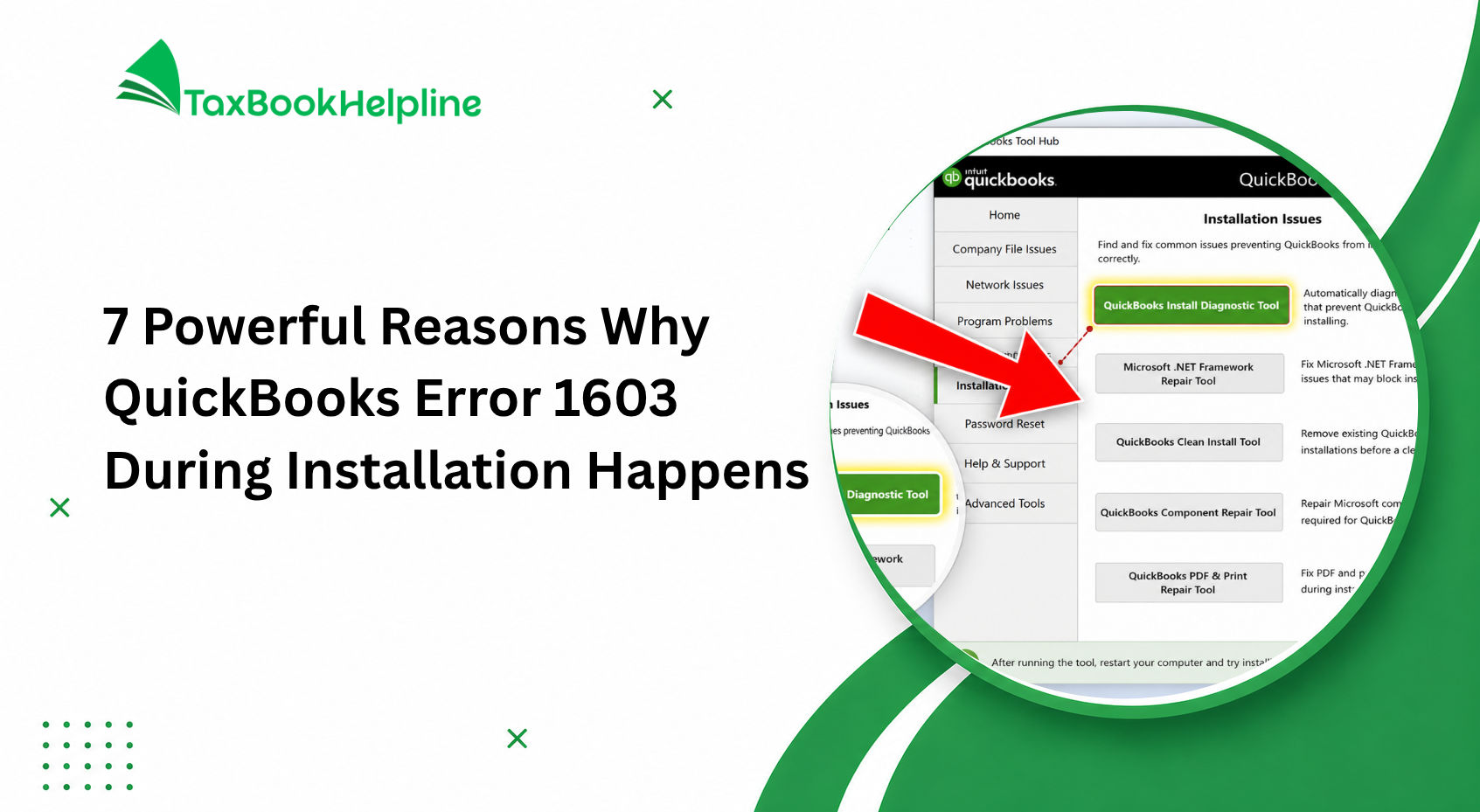
- Download QuickBooks Tool Hub
- Install it
- Open Tool Hub
- Click Company File Issues
- Select Run QuickBooks File Doctor
Choose your company file and let the scan complete. Depending on file size, this can take several minutes.
After it finishes, reopen QuickBooks and test multi-user mode again.
At TaxBookHelpline, we help users repair QuickBooks company file errors, network connectivity issues, and damaged configuration files using advanced troubleshooting methods when File Doctor alone is not enough.
Step 4: Verify Firewall Settings
Firewall restrictions are one of the biggest reasons behind QuickBooks Multi-User Mode Not Working? Fix Network Errors Fast situations after a Windows update or antivirus installation.
QuickBooks needs specific ports open to communicate properly across the network.
Common QuickBooks Ports
| QuickBooks Version | Port |
|---|---|
| QuickBooks 2024 | 8019, XXXXX |
| QuickBooks 2023 | 8019, XXXXX |
| QuickBooks 2022 | 8019, XXXXX |
(Port numbers may vary slightly depending on version.)
If the firewall blocks these ports, workstations cannot connect to the server.
What You Should Do
- Open Windows Defender Firewall
- Create inbound and outbound rules
- Allow QuickBooks executable files
- Allow QuickBooks ports
Also check third-party antivirus software because many security programs silently block QuickBooks connections.
Firewall and antivirus conflicts are among the most common causes of QuickBooks H202 and H505 errors. TaxBookHelpline provides expert assistance in configuring QuickBooks firewall permissions and secure network access correctly.
Step 5: Ping the Server Computer
This helps confirm whether the workstation can actually communicate with the server.
Test the Connection
On the workstation:
- Press Windows + R
- Type
cmd - Press Enter
Now type:
ping [ServerName]
Example:
ping OfficeServer
If you receive replies, the network connection is working.
If requests time out, the workstation cannot properly reach the server.
That usually points toward:
- network issues
- firewall restrictions
- DNS problems
- server detection failures
Step 6: Check Folder Permissions
QuickBooks requires proper access permissions for the shared company file folder.
Without full permissions, workstations may fail to connect.
Verify Folder Access
On the server:
- Right-click the company file folder
- Select Properties
- Go to Sharing
- Click Advanced Sharing
- Ensure the folder is shared
Then:
- Go to Security
- Give users:
- Full Control
- Read/Write permissions
Improper permissions are extremely common in office environments where multiple employees access QuickBooks daily.
At TaxBookHelpline, we help businesses resolve QuickBooks shared folder permission problems that prevent workstations from accessing company files in multi-user mode.
Step 7: Rename the .ND and .TLG Files
Network configuration files sometimes become damaged.
Renaming them forces QuickBooks to create fresh copies automatically.
How to Rename These Files
Locate your company file folder.
You will see files like:
- CompanyFile.qbw.nd
- CompanyFile.qbw.tlg
Rename them to:
- CompanyFile.qbw.nd.old
- CompanyFile.qbw.tlg.old
Now reopen QuickBooks. Fresh network files will regenerate automatically.
If QuickBooks still fails to switch into multi-user mode after recreating network files, TaxBookHelpline can assist with advanced QuickBooks network diagnostics and server troubleshooting.
Step 8: Update QuickBooks on All Systems
Different QuickBooks versions running across the network can trigger multi-user problems.
Make sure every system has:
- the same QuickBooks version
- the latest updates installed
Update QuickBooks
- Open QuickBooks
- Go to Help
- Click Update QuickBooks Desktop
- Install updates
- Restart the system
Do this on:
- server computer
- all workstations
Quick Troubleshooting Checklist
Here is a simple checklist you can run through quickly:
- Verify hosting settings
- Restart Database Server Manager
- Run QuickBooks File Doctor
- Check firewall permissions
- Test server ping
- Verify shared folder permissions
- Rename .ND and .TLG files
- Update QuickBooks everywhere
- Restart all systems
Many businesses fix the issue before even reaching the final step.
Final Thoughts
If you are struggling with QuickBooks Multi-User Mode Not Working? Fix Network Errors Fast, the issue is usually connected to hosting settings, firewall restrictions, damaged network files, or QuickBooks services not running properly.
Working through the fixes one step at a time usually resolves the issue faster than randomly changing settings.
The key is staying methodical:
- verify hosting
- check server communication
- restart services
- repair network files
- test permissions
Once the connection is restored properly, QuickBooks multi-user mode generally becomes stable again.
At 1 we provide expert support for QuickBooks multi-user mode errors, H202 issues, server communication failures, firewall conflicts, and company file access problems so businesses can restore workflow quickly and securely.

Alish Martin is an experienced finance and accounting content writer with 9+ years of expertise in QuickBooks troubleshooting, payroll management, bookkeeping solutions, and small business accounting software. Specializing in creating detailed and user-focused content, Alish helps businesses understand complex QuickBooks errors, technical issues, tax concerns, and financial processes through clear and practical guidance. As a contributor to Taxbookhelpline, Alish focuses on publishing accurate, SEO-optimized, and informative content designed to help users resolve QuickBooks challenges quickly and efficiently.