Printing invoices in QuickBooks Desktop is essential for maintaining accurate records, sending payment requests to customers, and managing business operations efficiently. However, many users face situations where QuickBooks Desktop suddenly stops printing invoices, freezes during the print process, or shows PDF and printer-related errors.
If you cannot print invoices in QuickBooks Desktop, this detailed guide by Taxbookhelpline explains the major causes behind the issue and provides step-by-step troubleshooting methods to fix the problem permanently.
Whether the issue is caused by printer setup problems, damaged company files, corrupted QuickBooks components, or outdated drivers, the solutions below will help restore your QuickBooks printing functionality smoothly.
Table of Contents
ToggleWhy Cannot You Print Invoices in QuickBooks Desktop?
Invoice printing problems in QuickBooks Desktop are more common than many users realize. These issues can prevent businesses from sending invoices, printing sales forms, or saving documents as PDFs, which may interrupt daily accounting operations.
In most cases, the problem is caused by printer settings, damaged QuickBooks components, Windows conflicts, or corrupted company files. Some issues are minor and can be fixed quickly, while others require advanced troubleshooting.
Below are the most common reasons why QuickBooks Desktop cannot print invoices properly.
Common Causes of QuickBooks Invoice Printing Issues
1. Incorrect Printer Configuration
If the selected printer is offline, misconfigured, or not set correctly in Windows, QuickBooks may fail to print invoices. Incorrect printer preferences can also trigger printing errors or blank pages.
2. Corrupted QBPrint.QBP File
The QBPrint.QBP file stores printer settings for QuickBooks Desktop. When this file becomes damaged or corrupted, QuickBooks may stop printing invoices, checks, or reports correctly.
3. Damaged QuickBooks Installation Files
Missing or corrupted QuickBooks program files can interfere with important functions, including invoice printing and PDF generation. This often happens after incomplete installations or failed software updates.
4. Outdated Printer Drivers
Printer drivers help your system communicate with the printer. If the drivers are outdated, incompatible, or corrupted, QuickBooks may experience printing failures or connection issues.
5. Windows Permission Issues
Sometimes Windows security settings restrict QuickBooks from accessing printer resources or required system folders. Lack of administrative permissions can block invoice printing operations.
6. Corrupted Company File Data
Data damage within the QuickBooks company file may affect invoices, templates, or transaction records, leading to printing problems or software crashes.
7. Problems with QuickBooks PDF Converter
QuickBooks uses a built-in PDF converter to print invoices and save forms as PDF files. If this component stops working properly, users may encounter PDF-related printing errors.
8. Printer Communication Errors
Network interruptions, disconnected printers, or unstable connections can stop QuickBooks from communicating with the printer successfully.
9. Incomplete QuickBooks Updates
Running an outdated version of QuickBooks can create compatibility issues with Windows updates, printers, and system components. Incomplete updates may also leave damaged files behind.
Common Signs of QuickBooks Invoice Printing Problems
Users experiencing invoice printing issues in QuickBooks Desktop often notice the following symptoms:
- QuickBooks freezes while printing invoices
- Nothing happens after clicking the Print button
- Invoice formatting appears incorrect
- QuickBooks displays PDF-related errors
- Printer not activated error appears
- Blank invoice pages are printed
- QuickBooks crashes during printing
- Batch printing stops unexpectedly
These issues can disrupt invoicing workflows and delay customer payments if not fixed immediately.
Things to Check Before Troubleshooting
Before moving to advanced troubleshooting methods, verify the following:
- Update QuickBooks Desktop to the latest version
- Ensure the printer is connected correctly
- Restart both the computer and printer
- Install the latest printer drivers
- Check for printer paper jams or warning lights
- Confirm Windows detects the printer properly
- Make sure the internet connection is stable for network printers
Basic checks often resolve temporary printing issues instantly.
Solution 1: Test Printing Outside QuickBooks Desktop
The first troubleshooting step is determining whether the issue lies within QuickBooks or the printer itself.
Steps to Test Printer Functionality
- Press the Windows Start button
- Search for Notepad
- Open Notepad and type a few words
- Click File > Print
- Select your printer
- Click Print
If the document prints successfully, the printer works properly and the issue is likely related to QuickBooks settings.
If the printer fails to print outside QuickBooks, reinstall or troubleshoot the printer drivers first.
Solution 2: Verify Printer Setup in QuickBooks
Incorrect printer settings inside QuickBooks are one of the most common causes of invoice printing problems.
Steps to Check Printer Setup
- Open QuickBooks Desktop
- Go to File > Printer Setup
- Select the Invoice form
- Verify the selected printer
- Ensure it matches your default Windows printer
- Save the settings
Incorrect configuration may prevent QuickBooks from communicating with the printer properly.
Solution 3: Set the Correct Default Printer in Windows
QuickBooks relies on Windows printer settings to print invoices correctly.
Steps to Set Default Printer
- Open Control Panel
- Go to Devices and Printers
- Locate your printer
- Right-click the printer
- Choose Set as Default Printer
Restart QuickBooks and test invoice printing again.
Solution 4: Run QuickBooks PDF & Print Repair Tool
The QuickBooks PDF & Print Repair Tool fixes common printing and PDF-related issues automatically.
Steps to Run the Tool
Download QuickBooks Tool Hub
Install the latest version of QuickBooks Tool Hub from Intuit’s official website.
Open Tool Hub
Launch the utility on your computer.
Run PDF & Print Repair Tool
- Click Program Problems
- Select QuickBooks PDF & Print Repair Tool
- Allow the tool to complete the repair
This utility repairs:
- PDF converter issues
- invoice printing errors
- missing print components
- damaged printing settings
Restart QuickBooks after the repair finishes.
Solution 5: Rename the QBPrint.QBP File
The QBPrint.QBP file stores QuickBooks printer settings. If the file becomes corrupted, QuickBooks may fail to print invoices.
Steps to Rename QBPrint.QBP File
Navigate to the following folder:
C:\ProgramData\Intuit\QuickBooks 20XXReplace “20XX” with your QuickBooks version.
Rename the File
- Locate QBPrint.QBP
- Right-click the file
- Select Rename
- Rename it to:
QBPrint.QBP.OLDRestart QuickBooks Desktop. A fresh QBPrint.QBP file will be created automatically.
Solution 6: Verify and Rebuild Company File Data
Corrupted company files can affect invoice printing functionality in QuickBooks Desktop.
Run Verify Data Utility
- Open QuickBooks
- Go to File > Utilities
- Select Verify Data
QuickBooks scans the company file for errors or corruption.
Run Rebuild Data Utility
If QuickBooks detects data damage:
- Go to File > Utilities
- Select Rebuild Data
- Create a backup when prompted
- Allow QuickBooks to repair the file
After rebuilding, try printing invoices again.
Solution 7: Repair QuickBooks Desktop Installation
Damaged installation files may prevent QuickBooks from functioning properly.
Run Quick Fix My Program
- Open QuickBooks Tool Hub
- Select Program Problems
- Click Quick Fix My Program
This tool repairs:
- stuck QuickBooks processes
- damaged background services
- minor installation issues
Restart the application after the repair completes.
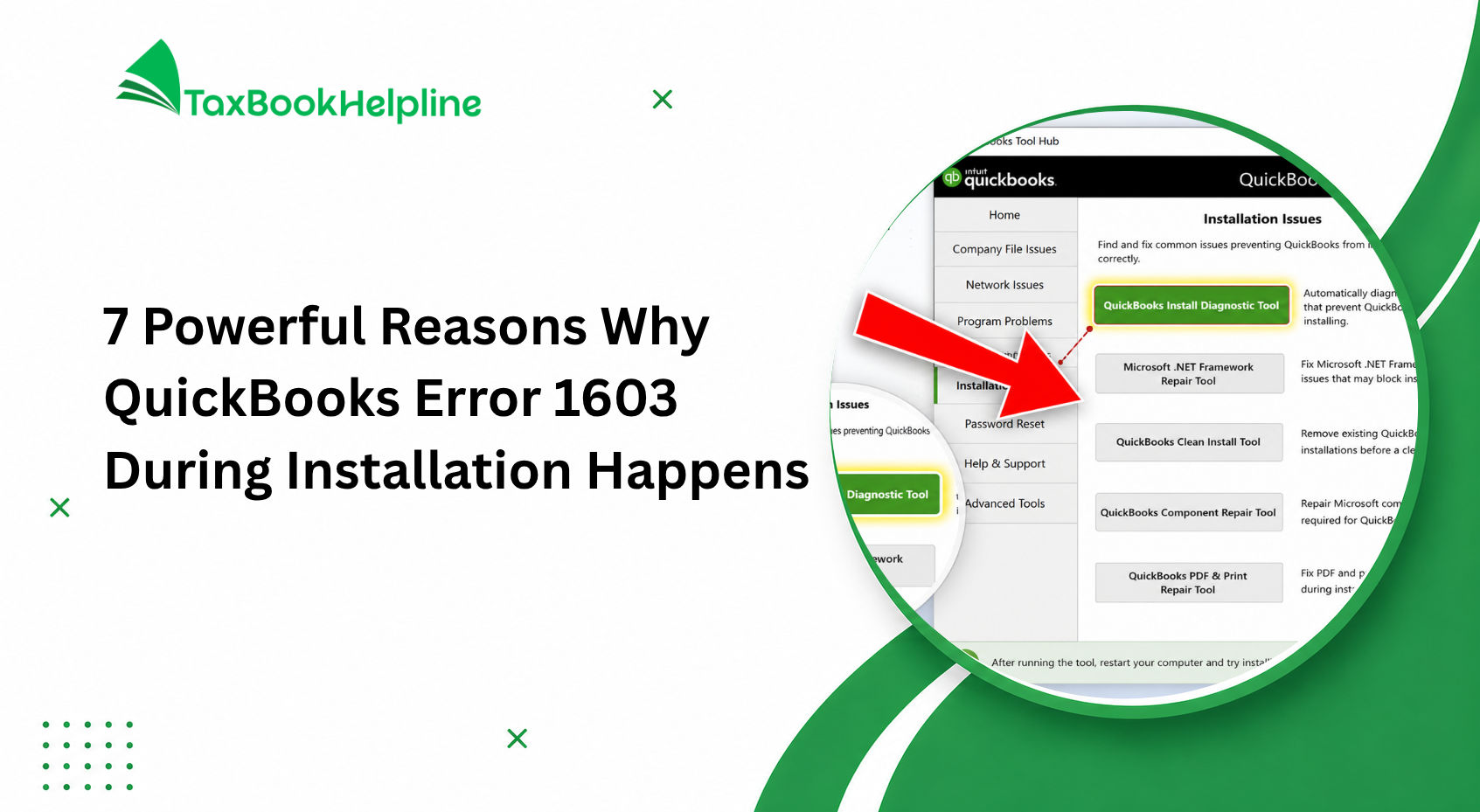
Solution 8: Run QuickBooks Install Diagnostic Tool
The Install Diagnostic Tool fixes installation-related issues affecting QuickBooks printing functions.
Steps to Run the Tool
- Open QuickBooks Tool Hub
- Select Installation Issues
- Click QuickBooks Install Diagnostic Tool
- Wait until the scan finishes
- Restart the computer
The tool repairs Microsoft components required for QuickBooks operations.
Solution 9: Update Printer Drivers
Outdated or incompatible printer drivers can prevent QuickBooks from printing invoices correctly.
Steps to Update Drivers
- Open Device Manager
- Expand Printers
- Right-click your printer
- Select Update Driver
- Install available updates
Restart the computer after updating the drivers.
Solution 10: Reinstall QuickBooks Desktop
If all troubleshooting methods fail, reinstalling QuickBooks Desktop may resolve severe printing issues.
A clean reinstall:
- removes corrupted files
- refreshes QuickBooks components
- repairs installation conflicts
- restores printing services
Always back up your company files before reinstalling the software.
Tips to Prevent QuickBooks Printing Issues
Printing problems in QuickBooks can interrupt daily business operations, delay invoicing, and create unnecessary frustration. The good news is that most QuickBooks printing issues can be prevented with regular system maintenance and a few best practices.
Follow these expert tips to keep QuickBooks printing smoothly and avoid common errors in the future.
1. Keep QuickBooks Updated
Always use the latest version of QuickBooks to ensure better compatibility with Windows, printers, and PDF components. Regular updates include important bug fixes, security improvements, and performance enhancements that help prevent printing and PDF-related issues.
2. Install Windows Updates Regularly
Outdated Windows components can cause communication problems between QuickBooks and your printer. Installing the latest Windows updates helps maintain system stability and ensures printing services work correctly.
3. Update Printer Drivers
Printer drivers act as a bridge between your computer and printer. Old or corrupted drivers often trigger invoice printing problems, blank pages, or PDF errors in QuickBooks. Visit your printer manufacturer’s official website and install the latest drivers regularly.
4. Back Up Your Company File Weekly
A damaged company file may affect QuickBooks functionality, including printing tasks. Creating regular backups protects your financial data and helps you recover quickly if any issue occurs.
5. Avoid Improper System Shutdowns
Force shutting down your computer can corrupt QuickBooks files, printer settings, and Windows services. Always close QuickBooks properly and shut down your system safely to avoid unexpected printing problems.
6. Run Verify Data Utility Frequently
The Verify Data tool in QuickBooks helps detect data damage and minor file issues before they become serious problems. Running this utility regularly improves overall software performance and reduces the chances of printing errors.
7. Use a Stable Internet or Network Connection
If you use QuickBooks in multi-user mode or print through a network printer, unstable internet or network connections may interrupt printing operations. A stable connection ensures smooth communication between QuickBooks and connected devices.
Frequently Asked Questions (FAQs)
Why cannot I print invoices in QuickBooks Desktop?
Users may fail to print invoices in QuickBooks Desktop because of corrupted printer settings, damaged QBPrint.QBP files, outdated printer drivers, or company file corruption. In some cases, Windows permission issues or damaged QuickBooks installation files can also interrupt the invoice printing process and prevent QuickBooks from communicating properly with the printer.
How do I fix QuickBooks invoice printing problems?
To fix QuickBooks invoice printing problems, first verify the printer setup, update printer drivers, and run the QuickBooks PDF & Print Repair Tool. If the issue continues, rename the QBPrint.QBP file, rebuild the company file data, and repair QuickBooks installation files using QuickBooks Tool Hub utilities for a complete solution.
What does the QBPrint.QBP file do in QuickBooks?
The QBPrint.QBP file stores printer configurations and form printing preferences in QuickBooks Desktop. If this file becomes damaged or corrupted, QuickBooks may fail to print invoices, reports, or forms correctly. Renaming the file forces QuickBooks to create a fresh printing configuration file automatically during the next startup.
Why does QuickBooks freeze while printing invoices?
QuickBooks may freeze while printing invoices because of damaged company files, corrupted QuickBooks components, outdated printer drivers, or communication issues between Windows and the printer. Problems with the QuickBooks PDF Converter or insufficient system permissions can also cause the software to stop responding during the printing process.
Can reinstalling QuickBooks Desktop fix printing issues?
Yes, reinstalling QuickBooks Desktop can resolve persistent printing issues caused by corrupted installation files or damaged program components. A clean reinstall removes broken files, refreshes QuickBooks services, and restores printing functionality. Before reinstalling, always create a backup of your company files to avoid accidental data loss.
Final Thoughts
Invoice printing issues in QuickBooks Desktop can slow down accounting workflows, delay customer billing, and affect business productivity. Fortunately, most QuickBooks invoice printing problems can be resolved using proper troubleshooting methods such as verifying printer setup, repairing QuickBooks components, rebuilding company data, and updating printer drivers.
For professional QuickBooks troubleshooting assistance, visit Taxbookhelpline and get expert support for QuickBooks Desktop errors, installation issues, payroll problems, and technical troubleshooting.

Alish Martin is an experienced finance and accounting content writer with 9+ years of expertise in QuickBooks troubleshooting, payroll management, bookkeeping solutions, and small business accounting software. Specializing in creating detailed and user-focused content, Alish helps businesses understand complex QuickBooks errors, technical issues, tax concerns, and financial processes through clear and practical guidance. As a contributor to Taxbookhelpline, Alish focuses on publishing accurate, SEO-optimized, and informative content designed to help users resolve QuickBooks challenges quickly and efficiently.