Let’s say, you are trying to use QuickBooks Shipping Manager and it stops working. You have a lot of orders to ship and a customer is already asking for their tracking number. When you open the QuickBooks Shipping Manager nothing happens. It crashes. This could be really frustrating.
This issue affects business owners who use QuickBooks POS for shipping. The problem can be tricky to identify. We will give you step-by-step solutions to get you back on track, fast. These solutions start with fixes and move to more technical issues. We do this instead of linking to general troubleshooting articles. Our goal is to help you resolve the issue quickly with QuickBook POS.
What Is The QuickBooks Shipping Manager Not Working?
There are a lot of reasons. It could be because of files or an outdated version of the software. It could be because of your login credentials or your carrier account. QuickBooks Shipping Manager works with major carriers like UPS and FedEx. This means you can:
- Generate and print shipping labels without leaving QuickBooks
- Can track shipments in real time
- Automatically populate customer and order data from invoices or sales orders
- Manage carrier account connections in one place
For small to mid-sized businesses, this integration saves a lot of time. Any disruption to its functionality can delay orders, frustrate customers, and cause accounting problems.
Why Does It Happen?
It is quite important to understand the root cause of the problem at first. Some possible reasons could be:
| Cause | Description |
| QuickBooks is out of date | Older versions do not work with the new Shipping Manager |
| ShipRush OCX file is not registered | This small component is what lets Windows and QuickBooks Shipping Manager talk to each other. If it is missing or broken nothing works. |
| Quickbooks Shipping Manager folders got corrupted | This usually happens after crashes or bad updates |
| Carrier Credentials broke | UPS/FedEx authentication can just expire or corrupt itself |
| Company file has data damage | Corrupt data in the company file can affect integrated features |
| Improper QuickBooks Installation | Background processes from a faulty install interfere with Shipping Manager |
| Multi-User Licensing Conflict | Access violation errors happens when multiple people share one QuickBooks setup |
| Old/Discontinued Shipping Manager Version | Intuit retired the legacy version; using it causes compatibility failures |
Important: You need to install the latest version first. No fix below will hold if the tool itself is discontinued.
How To Fix The Issue
Fix 1: Update QuickBooks Desktop
The first fix is to ensure you are running the latest version of QuickBooks Desktop. A surprising number of QuickBooks Manager problems just go away after an update.
Steps to update QuickBooks Desktop:
- Open QuickBooks Desktop and log in to your company file.
- Go to the Help menu and select Update QuickBooks Desktop.
- Hit the Update Now tab and check all available updates.
- Click Get Updates. Wait.
- Restart QuickBooks when it is done.
After that, try to relaunch the QuickBooks Shipping Manager to see if the issue is resolved.
Fix 2: Register the ShipRush OCX File
The ShipRush OCX file helps QuickBooks and Windows talk to the Shipping Manager. If it is not registered correctly, the Shipping Manager won’t work.
Here are the steps to register the ShipRush OCX file:
- Press the Windows key to open the Start menu.
- Go to All Programs > Accessories.
- Right-click Command Prompt. Select Run as Administrator.
- In the Command Prompt window, type the following and press Enter: cd c:\Windows\syswow64
- Then type the following command and press Enter: regsvr32.exe “c:\Program Files (x86)\Common Files\Intuit\ShippingManager\ZRush_ShipRush9_QB.ocx”
- Click OK on the confirmation box.
- Restart your computer. Try again with the Shipping Manager. The ShipRush OCX file should be registered.
Fix 3: Rename The QuickBooks Shipping Manager Folders
Renaming the existing Shipping Manager folders forces QuickBooks to rebuild them on the next launch, replacing any corrupted or misconfigured files.
Find these two folders:
- C:\Program Files (x86)\Common Files\Intuit\ShippingManager
- C:\Users\[WindowsUserName]\AppData\Roaming\Intuit\ShippingManager
For each one: right-click and select “Rename”. Add “.OLD” to the end.
Relaunch QuickBooks. It will automatically create clean versions of those folders.
Fix 4: Recreate the Shipping Manager Account
When carrier credentials get corrupted or authentication breaks down, recreating the Shipping Manager account resets all connection settings and re-establishes the carrier links.
Step 1: Delete the existing account:
- Go to the File > Shipping > Shipping Options.
- Click Settings, then select Delete Account.
Step 2: Set up a new account:
- Go to File > Shipping > Shipping Options
- Enter the required carrier account information.
- Accept the End User License Agreement.
- Click Next. Set up your printer settings.
- Click Next, then Finish.
Fix 5: Verify and Rebuild Company File Data
Data corruption in your QuickBooks company file can indirectly cause the QuickBooks Shipping Manager to malfunction. The built-in Verify and Rebuild Data utility can detect and repair this damage.
Part A: Verify your company file:
- Go to Window > Close All.
- Click File > Utilities > Verify Data.
- Review the result:
| Message | What It Means |
| “No problems detected” | Your file is clean; skip the rebuild |
| An error message appears | Search the error code for guidance |
| “Your data has lost integrity” | Data corruption detected; proceed to Rebuild |
Part B: Rebuild data (if damage is detected):
- Go to File > Utilities > Rebuild Data.
- QuickBooks will ask you to create a backup first. Click OK and choose a save location.
- Give the backup a file name so it does not overwrite your existing company file.
- Click OK when you see “Rebuild has completed.”
Fix 6: Repair QuickBooks Desktop Using Tool Hub
Improper installation or background process conflicts can disrupt how QuickBooks integrates with the Shipping Manager. The QuickBooks Tool Hub provides two repair options.
Option A: Run Quick Fix My Program:
- Download and open QuickBooks Tool Hub.
- Click on Program Problems.
- Select Quick Fix my Program.
- Once the process completes, reopen QuickBooks Desktop and your company file.
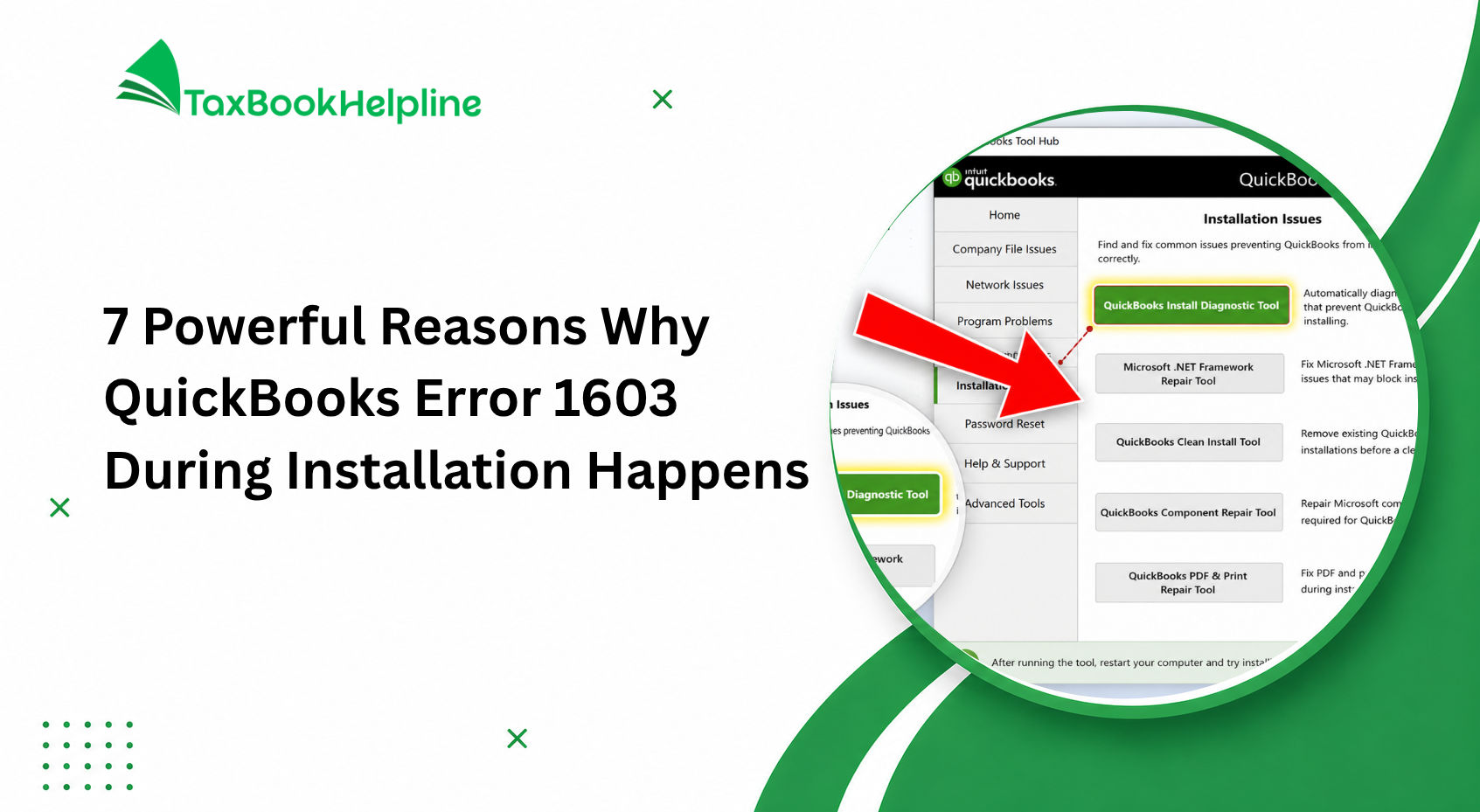
Option B: Run the QuickBooks Install Diagnostic Tool:
- Open QuickBooks Tool Hub.
- Navigate to Installation Issues.
- Click QuickBooks Install Diagnostic Tool. Allow it to run.
- When complete, reopen QuickBooks. Update it to the latest release.
Fix 7: Reinstall QuickBooks Point of Sale (POS Users Only)
If you use QuickBooks Point of Sale and are experiencing Shipping Manager issues, a clean reinstallation of the POS software may be necessary to replace program files and reset configurations.
Steps:
- Open the Windows Start menu, search for the Control Panel, and press Enter.
- Go to Programs and Features.
- Find QuickBooks Point of Sale, right-click it, and select Uninstall.
- Follow the on-screen instructions to remove it completely.
- Reinstall QuickBooks Point of Sale.
- After installation, go to File > Preferences > Company > Sales > Shipping.
- Uncheck the box for Use QuickBooks Shipping Manager, then click Save.
- Go back to File > Preferences > Company > Shipping.
- Re-check the box for Use QuickBooks Shipping Manager.
- Open the Point of Sale menu, select Shipping Manager Settings, and re-enter your account details.
Fix 8: Resolve the QuickBooks Access Violation Error (Multi-User Mode)
Some users in multi-user environments encounter an Access Violation error when trying to create a UPS shipment from within the Shipping Manager. This occurs when the Shipping Manager database path is misconfigured across the host computer and workstations.
On the host computer:
- Open QuickBooks Desktop.
- Go to Help > About QuickBooks.
- Verify that User Licenses show a value of 2 or more.
- Note down the license number displayed and keep QuickBooks open.
On the workstation:
- Open Shipping Manager and navigate to Settings > Connection Settings.
- Enable Connect via Network and note the current Shipping Manager database path.
- Note the location of your company file.
- Close QuickBooks Desktop on both the host and workstation.
- Navigate to the Shipping Manager folder: C:\Documents and Settings\All Users\Documents\
- Copy the Shipping Manager v4 folder.
- Navigate to: C:\Documents and Settings\All Users\Documents\Intuit\QuickBooks\Company Files
- Paste the Shipping Manager v4 folder.
- Reopen QuickBooks on the host computer. Go to Shipping Manager Settings > Connection Settings > Connect Via Network and enter: C:\Documents and Settings\All Users\Documents\Intuit\QuickBooks\Company Files\Shipping Manager v4\Database.v4\
- Click OK to save.
- On the workstation, reopen QuickBooks and go to Shipping Manager Settings > Connection Settings > Connect Via Network. Enter: \\[host computer name or IP address]\SharedDocs\Intuit\QuickBooks\Company Files\Shipping Manager v4\Database.v4\
- Click OK to save and return to the home screen.
Quick Troubleshooting Reference Table
| Issue | Recommended Fix |
| Shipping Manager won’t open | Fix 1 (Update QB) or Fix 2 (Register OCX) |
| Labels won’t print | Fix 3 (Rename folders) or Fix 4 (Recreate account) Fix 3. Fix 4 |
| Database error message | Fix 5 (Verify & Rebuild) |
| Crashes on launch | Fix 6 (Tool Hub repair) |
| POS shipping not working | Fix 7 (Reinstall POS) |
| Access violation in multi-user mode | Fix 8 (Connection settings fix) |
Tips to Prevent QuickBooks Shipping Manager Issues in the Future
To keep the QuickBooks Shipping Manager running smoothly you can follow these steps:
Keep QuickBooks Desktop updated. Install the latest releases and patches, from Intuit.
- Use the new Shipping Manager. Ensure you’ve transitioned from the discontinued legacy version.
- Perform regular data verification. Run the Verify Data utility monthly to catch corruption early.
- To keep your QuickBooks company file safe, back up your company file regularly. Always make sure you have backups before you run Rebuild or reinstall software. This way you can avoid losing data.
- You should also maintain user license counts. If you use -user mode verify that your license supports the number of active users. This is important to avoid any issues with your QuickBooks.
- Check your carrier account credentials periodically. If you see authentication errors, re-authenticate your UPS or FedEx account. This will help you avoid any problems with shipping.
A QuickBooks Shipping Manager that is not working right can cause problems with your order fulfillment process. Fortunately, there are some fixes that can help. The fixes in this guide cover most of the issues people run into. These fixes include things like updating QuickBooks and renaming folders as well as more complex things like setting up multi-user databases.
Start with the simpler solutions before moving on to the more complicated steps. In most cases, the issue is resolved within the first few fixes. If you try all the steps and still have problems,, consider reaching out to a QuickBooks ProAdvisor.
Frequently Asked Questions (FAQs)
Q1. What is the QuickBooks Shipping Manager, and which versions support it?
The QuickBooks Shipping Manager is a tool within QuickBooks Desktop. It helps you create and manage shipping labels for carriers like UPS and FedEx. It works in QuickBooks Desktop Pro, Premier, and Enterprise editions.You need to have the latest version of QuickBooks Desktop because the old versions are no longer supported and can cause errors.
Q2. Why does it keep showing a database error?
If you see a database error in the QuickBooks Shipping Manager it means there is a problem with your configuration files or your company file data. You should try renaming the QuickBooks Shipping Manager folders running the Verify and Rebuild Data utility and reconfiguring the database connection path to fix the error.
Q3. How do I fix the QuickBooks Shipping Manager Access Violation error?
The Access Violation error usually happens in multi-user environments when the Shipping Manager database path is not shared correctly. To fix the Access Violation error with the QuickBooks Shipping Manager, you need to copy the Shipping Manager database folder to the shared QuickBooks Company Files directory. Then you need to update the Connection Settings on all computers.
Q4. Can I use QuickBooks Shipping Manager with FedEx and UPS at the same time?
Yes, the QuickBooks Shipping Manager supports carriers like UPS and FedEx. You can set up and authenticate each carrier account separately and choose the best option, for each shipment with the Shipping Manager.
Q5. What should I do if none of the fixes resolve the QuickBooks Shipping Manager issue?
If you try all the fixes and the QuickBooks Shipping Manager is still not working you may need to contact a QuickBooks ProAdvisor or Intuit’s technical support team for help with it. They can look at your system environment and configuration to find the problem.

Alish Martin is an experienced finance and accounting content writer with 9+ years of expertise in QuickBooks troubleshooting, payroll management, bookkeeping solutions, and small business accounting software. Specializing in creating detailed and user-focused content, Alish helps businesses understand complex QuickBooks errors, technical issues, tax concerns, and financial processes through clear and practical guidance. As a contributor to Taxbookhelpline, Alish focuses on publishing accurate, SEO-optimized, and informative content designed to help users resolve QuickBooks challenges quickly and efficiently.